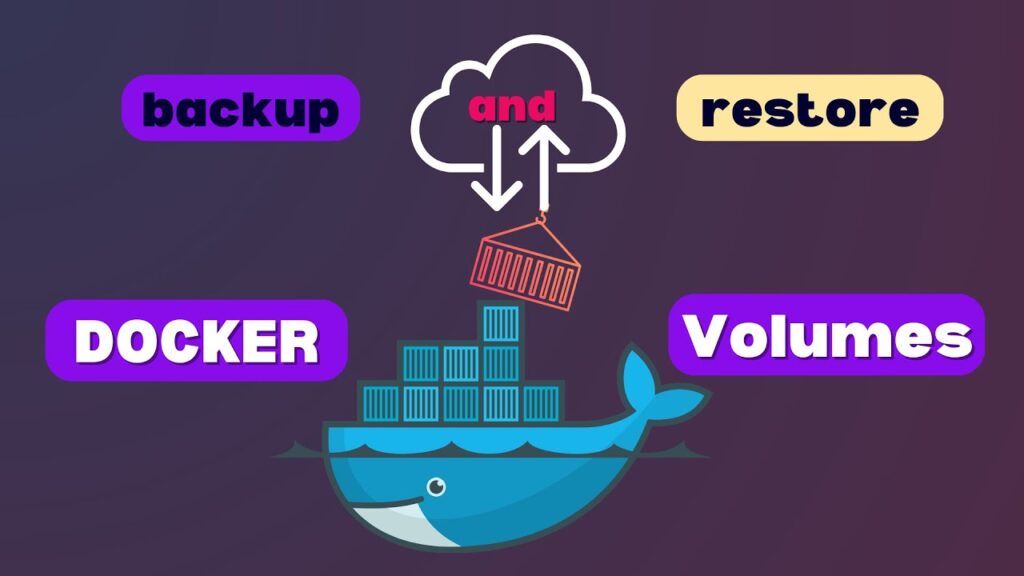

Knowing how to backup and restore a volume in Docker is becoming more and more crucial as more developers use it to expedite their development processes. This article will discuss the problems associated with volume backup and restoration, the rationale behind them, and offer a complete solution that will make the process simple for you.
Because it makes it easy to construct and manage containerized apps, Docker has become a vital tool for many developers in recent years. One of Docker’s biggest benefits is its capacity to control data volumes, which lets you store data that lasts longer than a container. Docker’s volume control can occasionally be difficult, despite its many advantages. Specifically, creating backups and recovering volumes can be difficult and prone to mistakes. We’ll look at why you might need to backup your volumes in this post, as well as how to do it properly. There are many compelling reasons to do so. Here are a few reasons why you might need to take backups of your Docker volumes:
Disaster Recovery
The most evident justification for backing up your Docker volumes is to guard against data loss in the case of an emergency. You can make sure that your important data is secure and recoverable in an emergency by regularly backing up your volumes.
Testing and Development
Making backups of your Docker volumes is also necessary for testing and development. You may quickly revert to a previous state in case of issues or the need to test new features by making backups of your volumes at various points during the development process.
Replication
Replicating data across different environments might also benefit from backing up your Docker volumes. You may guarantee that your data is consistent throughout all of your development, staging, and production environments by making backups of your volumes and restoring them in different settings.
Detailed steps
After discussing the issues and justifications for backups and volume restoration in Docker, let’s see how to accomplish it properly. The following procedures should be followed in order to create backups of your volumes:
Step 1: Identify the Volume
Selecting the volume you wish to backup is the first step in creating a copy of that volume. This can be accomplished by executing the subsequent command:
docker volume lsThis will show you a list of all the volumes that are currently available on your Docker host. Note down the name of the volume that you want to back up.
Step 2: Create a Backup
To create a backup of the volume, you can use the docker run command to start a container that mounts the volume you want to back up and a separate container that writes the backup data to a file.
Here’s an example of how to do this:
docker run --rm \
--mount source=<volume-name>,target=<target> \
-v $(pwd):/backup \
busybox \
tar -czvf /backup/<backup-filename>.tar.gz <target>
In this command, replace <volume-name> with the name of the volume you want to back up, <target> with the mount point inside the docker container, and <backup-filename> with a name for the backup file.
Step 3: Move the Backup File to an External Server
To make sure your backup file is safe and secure, it’s a good idea to relocate it to an external server or storage device after creating it. In the event of a calamity, such as a server failure or security breach, the backup file can be better protected by being stored on a different server or storage device. SCP can be used to transfer the backup file to an external server.
Using SSH, you can move files between servers using Secure Copy (SCP), a secure file transfer protocol. You must have SSH access to the source and destination servers in order to utilize SCP. The backup file can be copied to the external server using the following command:
scp /path/to/backupfile user@external-server:/path/to/destinationStep 4: Restore the Volume
If you need to restore the volume from the backup, you can use the docker run command to start a container that mounts the backup file and a separate container that writes the backup data to the volume.
Here’s an example of how to do this:
docker run --rm \
--mount source=<volume-name>,target=<target> \
-v $(pwd):/backup \
busybox \
tar -xzvf /backup/<backup-filename>.tar.gz -C /
In this command, replace <volume-name> with the name of the volume you want to back up, <target> with the mount point inside the docker container, and <backup-filename> with a name for the backup file.